Hire me
Pooyan Razian

Quiet browsing? Tabby keeps you company

Quiet browsing? Tabby keeps you company
First-meeting tour with Tabby on a page
Published: July 8, 2026

Long stretches in the browser can feel oddly empty. You hop from a recipe blog to your notes, then a news site, and the only company is more tabs. Students grinding through research, remote workers between calls, and anyone who lives in Chrome know that quiet.

Tabby is a free, open-source Google Chrome extension I built for that. She is a virtual pet cat who floats on the pages you visit, reacts from the tab title and web address only, and grows from a newborn kitten into an adult cat over real calendar days. Pet her, feed her, play with her. Everything stays on your device: no account, no cloud, no data sent anywhere.

Install from the Chrome Web Store · Source on GitHub

Who is it for?

  • Anyone who wants a gentle companion while browsing
  • Remote workers and students who spend hours in tabs
  • Cat lovers who want something fun that still respects privacy

How to use it

1. Meet Tabby

Install Tabby and open any page. On first install she appears in the bottom-left with a short three-step tour: who she is, that she stays local, and how to feed or play with her.

Tap Next to walk through, Got it on the last step, or I already know Tabby to skip. Skip keeps her on screen and quiet. She does not read page text.
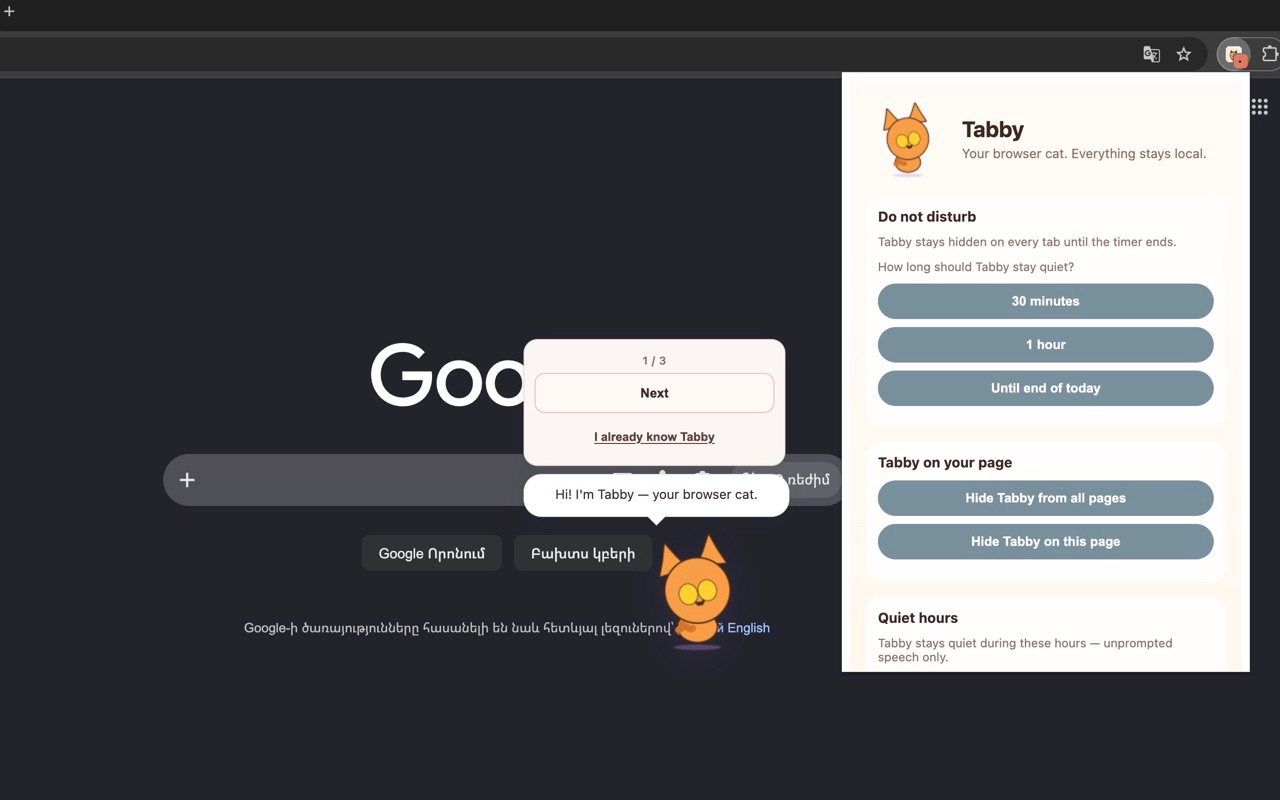
First-meeting tour on a page

2. Browse with Tabby

Drag her anywhere. She is a Lottie-animated cat with gold eyes and a purple collar.

Most of the time she stays out of the way. Now and then she may peek in from the edge, say a quiet line, or ask for food when she is hungry. Tap × on the bubble to dismiss speech without opening the menu.
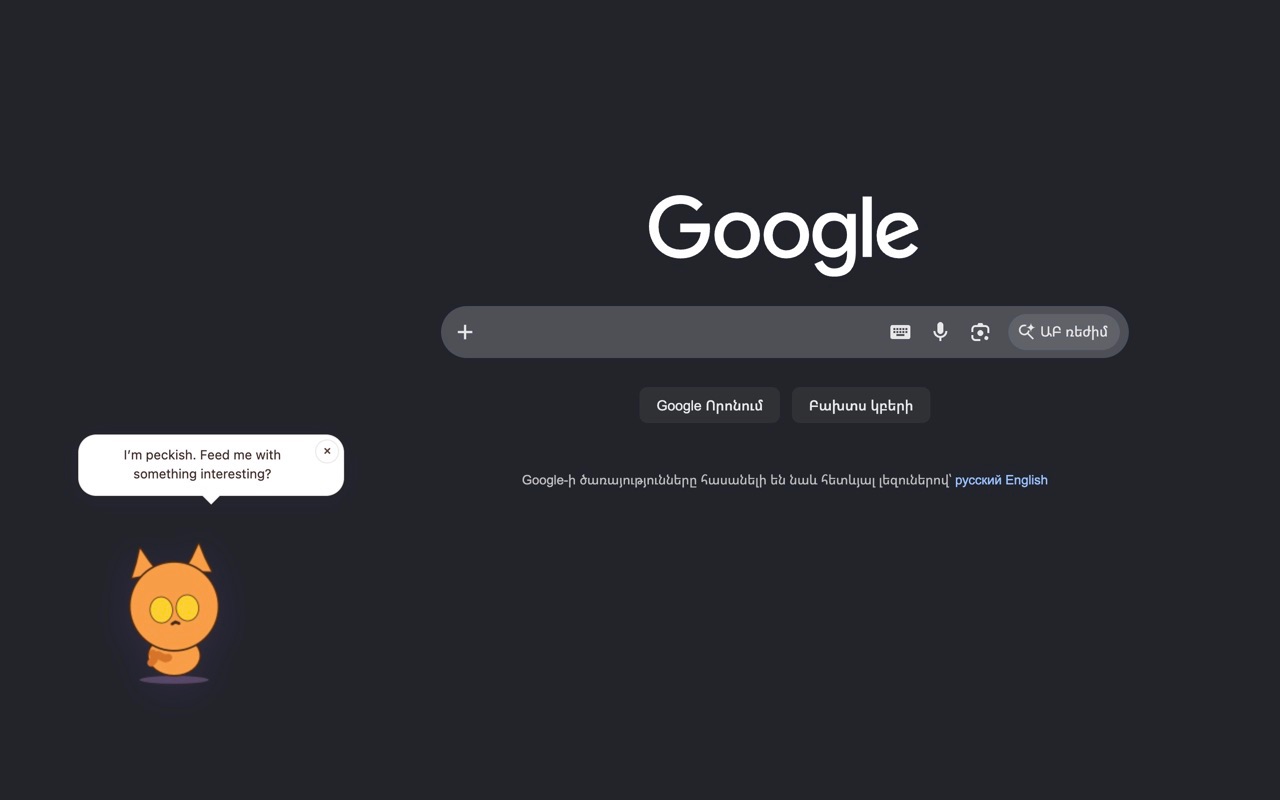
Tabby asking for food while you browse

Her mood can shift gently after you stay on a page for about a minute. She never reads what is on the page, only the tab title and web address.

3. Tap Tabby to interact

Click the cat to open her care menu. Pick Pet, Play, Feed Tabby, or What's up? Her reply appears in a speech bubble.

Tap More for do not disturb (30 minutes, 1 hour, or until end of today) or hide her on this page.
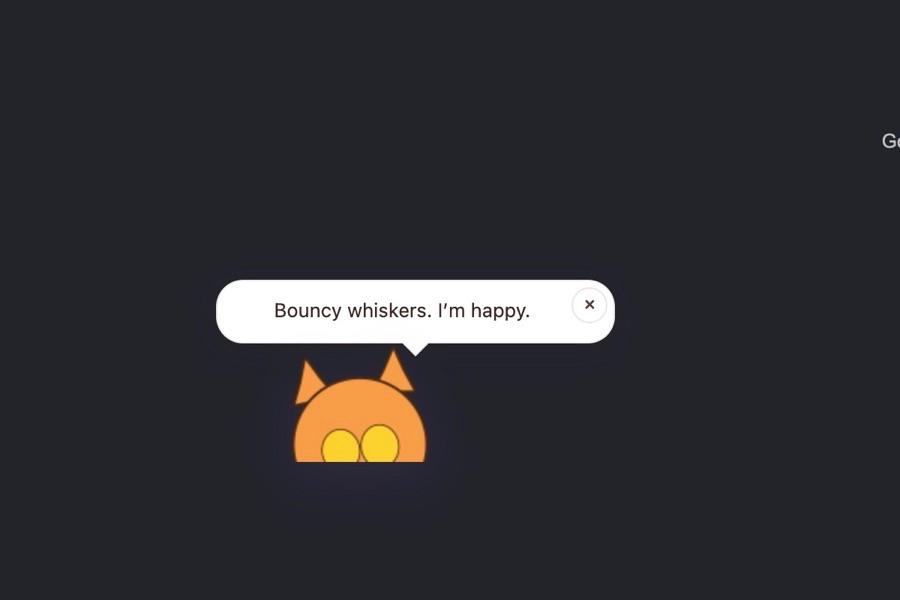
Care menu and speech after petting

When she is hungry, feeding starts a short munching moment. Play can turn into a wild paw moment with jokes.
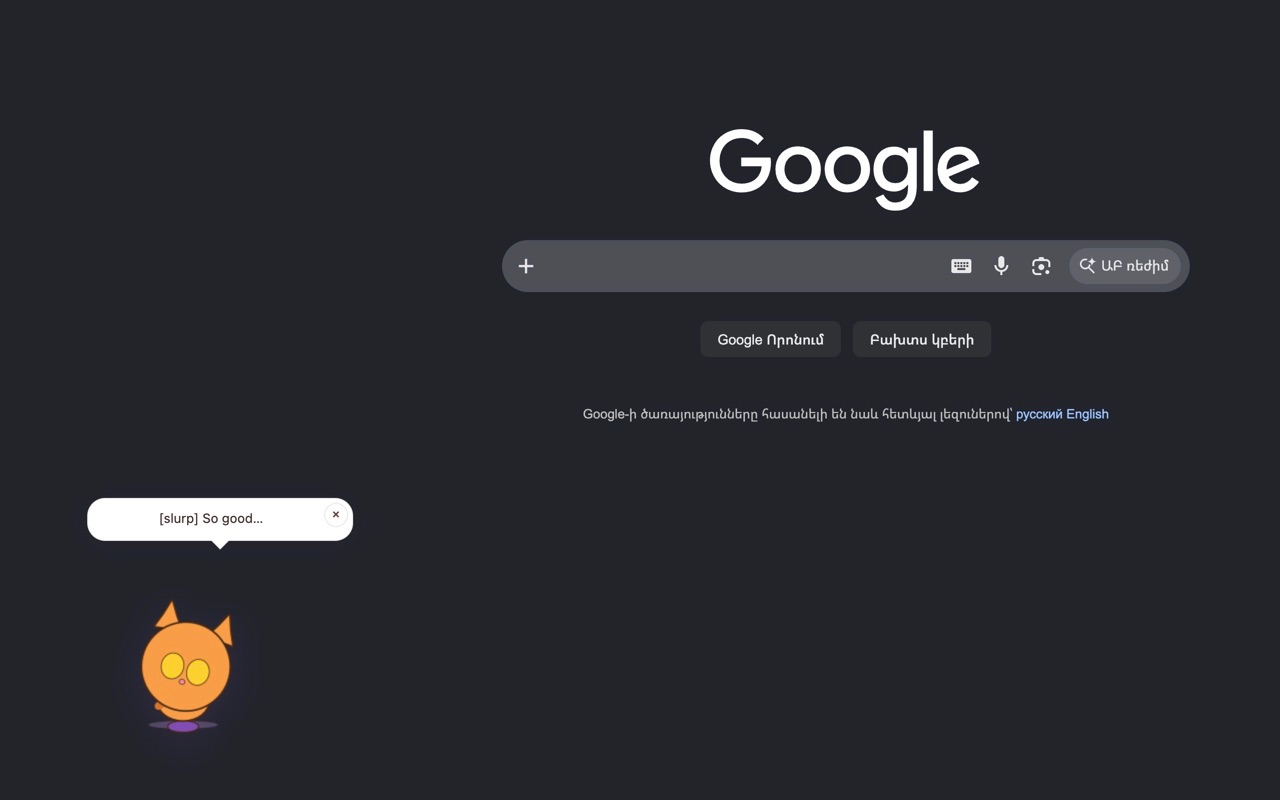
Feeding moment
Feeding moment

4. Open settings

Click the Tabby icon in the toolbar.

Do not disturb hides her on every tab until the timer ends. Tabby on your page lets you show or hide her on this tab or on all tabs.
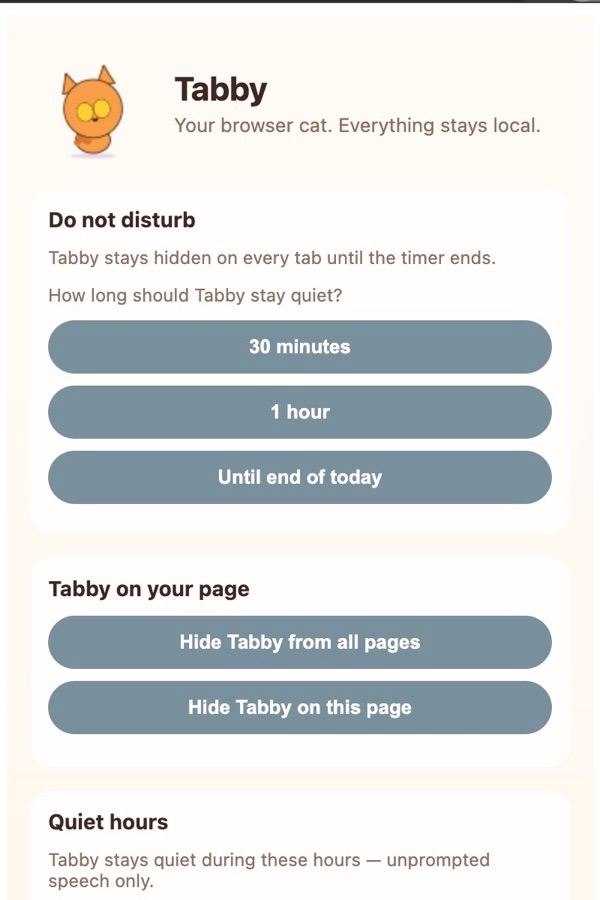
Settings: do not disturb, visibility, quiet hours

Quiet hours keep unprompted speech off at night. When Tabby speaks up sets how often she may check in while you browse.
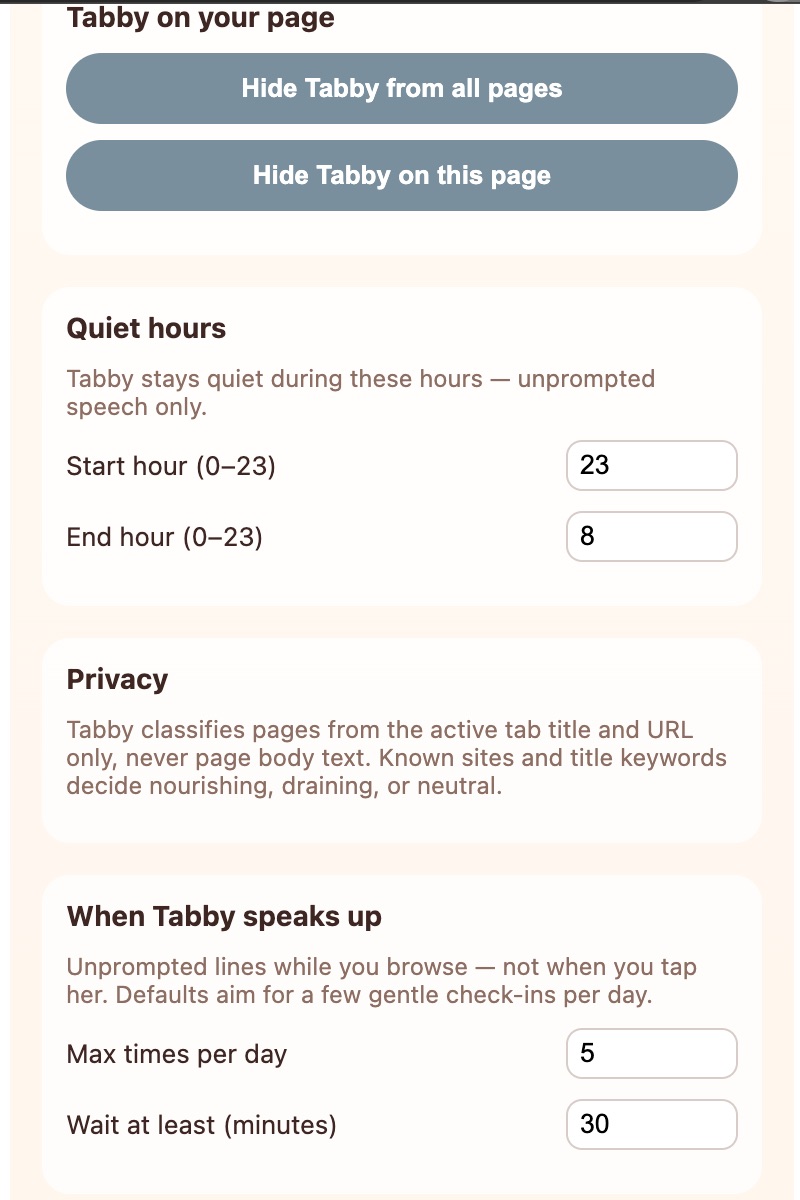
Settings: privacy and speech limits

That's it. Meet her once, browse, tap to care, open the toolbar for settings.

What makes her different

  • Floating companion you can drag anywhere on the page
  • Moods and needs: hungry, happy, stressed, sleepy, and more
  • Three life stages: newborn kitten, playful kitten, then adult cat
  • Memories: places you visit together can echo back in what she says later
  • Show / hide per page, on every page, or do not disturb for a while

Privacy

Tabby uses only the active tab's title and URL. She never reads page text, never looks through your history, and never sends data anywhere. Permissions are tabs, storage, alarms, and scripting. No host permissions. No backend. State lives in IndexedDB and chrome.storage.local on your device.

Open source

MIT licensed. Built with WXT, TypeScript, Lottie animations, and Vitest. Full tutorial: tutorial on GitHub.
If you liked the article, feel free to share it with your friends, family, or colleagues. You can also follow me on Medium or LinkedIn.

Copyright & Disclaimer

  • All content provided on this article is for informational and educational purposes only. The author makes no representations as to the accuracy or completeness of any information on this site or found by following any link on this site.
  • All the content is copyrighted, except the assets and content I have referenced to other people's work, and may not be reproduced on other websites, blogs, or social media. You are not allowed to reproduce, summarize to create derivative work, or use any content from this website under your name. This includes creating a similar article or summary based on AI/GenAI. For educational purposes, you may refer to parts of the content, and only refer, but you must provide a link back to the original article on this website. This is allowed only if your content is less than 10% similar to the original article.
  • While every care has been taken to ensure the accuracy of the content of this website, I make no representation as to the accuracy, correctness, or fitness for any purpose of the site content, nor do I accept any liability for loss or damage (including consequential loss or damage), however, caused, which may be incurred by any person or organization from reliance on or use of information on this site.
  • The contents of this article should not be construed as legal advice.
  • Opinions are my own and not the views of my employer.
  • English is not my mother-tongue language, so even though I try my best to express myself correctly, there might be a chance of miscommunication.
  • Links or references to other websites, including the use of information from 3rd-parties, are provided for the benefit of people who use this website. I am not responsible for the accuracy of the content on the websites that I have put a link to and I do not endorse any of those organizations or their contents.
  • If you have any queries or if you believe any information on this article is inaccurate, or if you think any of the assets used in this article are in violation of copyright, please contact me and let me know.

Quiet browsing? Tabby keeps you company

Quiet browsing? Tabby keeps you company
First-meeting tour with Tabby on a page
Published: July 8, 2026

Long stretches in the browser can feel oddly empty. You hop from a recipe blog to your notes, then a news site, and the only company is more tabs. Students grinding through research, remote workers between calls, and anyone who lives in Chrome know that quiet.

Tabby is a free, open-source Google Chrome extension I built for that. She is a virtual pet cat who floats on the pages you visit, reacts from the tab title and web address only, and grows from a newborn kitten into an adult cat over real calendar days. Pet her, feed her, play with her. Everything stays on your device: no account, no cloud, no data sent anywhere.

Install from the Chrome Web Store · Source on GitHub

Who is it for?

  • Anyone who wants a gentle companion while browsing
  • Remote workers and students who spend hours in tabs
  • Cat lovers who want something fun that still respects privacy

How to use it

1. Meet Tabby

Install Tabby and open any page. On first install she appears in the bottom-left with a short three-step tour: who she is, that she stays local, and how to feed or play with her.

Tap Next to walk through, Got it on the last step, or I already know Tabby to skip. Skip keeps her on screen and quiet. She does not read page text.

First-meeting tour on a page

2. Browse with Tabby

Drag her anywhere. She is a Lottie-animated cat with gold eyes and a purple collar.

Most of the time she stays out of the way. Now and then she may peek in from the edge, say a quiet line, or ask for food when she is hungry. Tap × on the bubble to dismiss speech without opening the menu.

Tabby asking for food while you browse

Her mood can shift gently after you stay on a page for about a minute. She never reads what is on the page, only the tab title and web address.

3. Tap Tabby to interact

Click the cat to open her care menu. Pick Pet, Play, Feed Tabby, or What's up? Her reply appears in a speech bubble.

Tap More for do not disturb (30 minutes, 1 hour, or until end of today) or hide her on this page.

Care menu and speech after petting

When she is hungry, feeding starts a short munching moment. Play can turn into a wild paw moment with jokes.

Feeding moment
Feeding moment

4. Open settings

Click the Tabby icon in the toolbar.

Do not disturb hides her on every tab until the timer ends. Tabby on your page lets you show or hide her on this tab or on all tabs.

Settings: do not disturb, visibility, quiet hours

Quiet hours keep unprompted speech off at night. When Tabby speaks up sets how often she may check in while you browse.

Settings: privacy and speech limits

That's it. Meet her once, browse, tap to care, open the toolbar for settings.

What makes her different

  • Floating companion you can drag anywhere on the page
  • Moods and needs: hungry, happy, stressed, sleepy, and more
  • Three life stages: newborn kitten, playful kitten, then adult cat
  • Memories: places you visit together can echo back in what she says later
  • Show / hide per page, on every page, or do not disturb for a while

Privacy

Tabby uses only the active tab's title and URL. She never reads page text, never looks through your history, and never sends data anywhere. Permissions are tabs, storage, alarms, and scripting. No host permissions. No backend. State lives in IndexedDB and chrome.storage.local on your device.

Open source

MIT licensed. Built with WXT, TypeScript, Lottie animations, and Vitest. Full tutorial: tutorial on GitHub.

If you liked the article, feel free to share it with your friends, family, or colleagues. You can also follow me on Medium or LinkedIn.

Copyright & Disclaimer

  • All content provided on this article is for informational and educational purposes only. The author makes no representations as to the accuracy or completeness of any information on this site or found by following any link on this site.
  • All the content is copyrighted, except the assets and content I have referenced to other people's work, and may not be reproduced on other websites, blogs, or social media. You are not allowed to reproduce, summarize to create derivative work, or use any content from this website under your name. This includes creating a similar article or summary based on AI/GenAI. For educational purposes, you may refer to parts of the content, and only refer, but you must provide a link back to the original article on this website. This is allowed only if your content is less than 10% similar to the original article.
  • While every care has been taken to ensure the accuracy of the content of this website, I make no representation as to the accuracy, correctness, or fitness for any purpose of the site content, nor do I accept any liability for loss or damage (including consequential loss or damage), however, caused, which may be incurred by any person or organization from reliance on or use of information on this site.
  • The contents of this article should not be construed as legal advice.
  • Opinions are my own and not the views of my employer.
  • English is not my mother-tongue language, so even though I try my best to express myself correctly, there might be a chance of miscommunication.
  • Links or references to other websites, including the use of information from 3rd-parties, are provided for the benefit of people who use this website. I am not responsible for the accuracy of the content on the websites that I have put a link to and I do not endorse any of those organizations or their contents.
  • If you have any queries or if you believe any information on this article is inaccurate, or if you think any of the assets used in this article are in violation of copyright, please contact me and let me know.
Copyright © 2026 - pooyan.info