Hire me
Pooyan Razian

How to generate fun images using OpenAI

How to generate fun images using OpenAI
A CLI command to generate image
Published: January 20, 2023

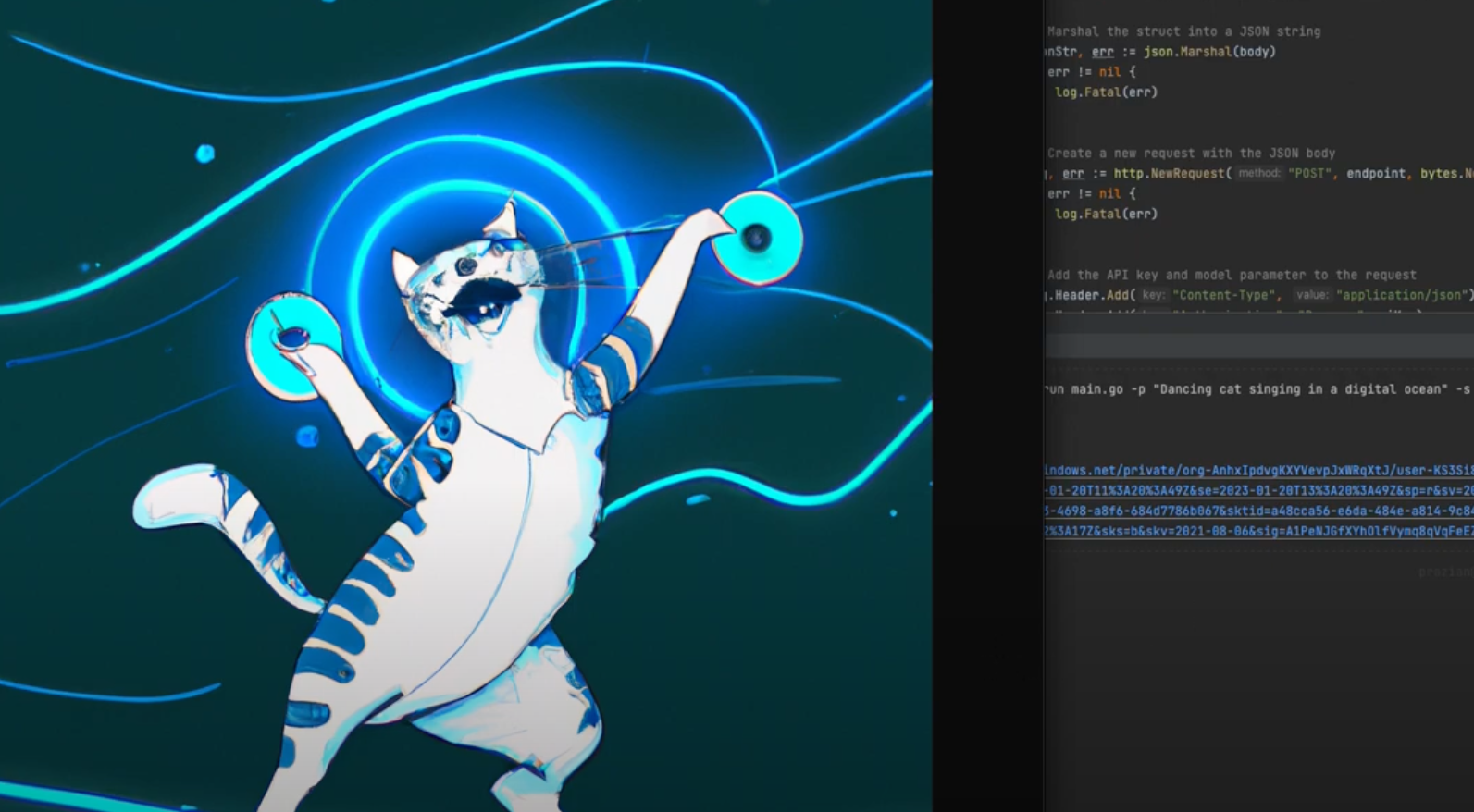
A few days ago I was curious to try out OpenAI APIs, so I wrote a small CLI tool to generate images using the API. The project can be found on this repository on GitHub.

Where can this be used?

You can easily generate unique cool images in a few seconds based on your thoughts and share them with your colleagues or friends on Slack, Twitter, or other social media!

How to install and use the tool

The instructions are written on the repository's README file at this link, but I will write a few ways to run it. The command will generate an image based on the prompt you pass to it and the size it should have and returns the URL of it.

Example command

The command is pretty simple. You can use it like this:

# If Go is installed locally
go run main.go -p "Dancing cat singing in a digital ocean" -s "1024x1024"

# If Go is not installed locally, but Docker is installed
docker run -it --rm -v $(pwd):/app -w /app golang:1.16 go run main.go -p "Dancing cat singing in a digital ocean" -s "1024x1024"

You can even build the project and create an alias on your laptop to call this command from anywhere in your terminal!

# 1. Build the project (run it while you are in this path)
go build -o open-ai-image-generate

# 2.1. You can create an alias like this (if you prefer not to build the project)
alias 'open_ai_generate_image=docker run -it --rm -v /path/to/cloned/repo:/app -w /app golang:1.16 go run main.go'

# 2.2. You can create an alias like this (if you have also built the project)
alias 'open_ai_generate_image=/path/to/cloned/repo/open_ai_generate_image'

# 3. Then you can run it like this
open_ai_generate_image -p "Dancing cat singing in a digital ocean" -s "1024x1024"

Alternatively, you can:

  • Copy the executable to your $PATH (for example, /usr/local/bin or /usr/bin) and call it from anywhere in your terminal, or you can add the project's directory to your $PATH.
  • Run go install to install the project in your $GOPATH and call it from anywhere.

If you install the application using the go install command, remember to:

  • Add your $GOPATH to your $PATH if you haven't already.
  • Set the OPENAI_API_KEY environment variable with the value of your API key.

If you liked the article, feel free to share it with your friends, family, or colleagues. You can also follow me on Medium or LinkedIn.

Copyright & Disclaimer

  • All content provided on this article is for informational and educational purposes only. The author makes no representations as to the accuracy or completeness of any information on this site or found by following any link on this site.
  • All the content is copyrighted, except the assets and content I have referenced to other people's work, and may not be reproduced on other websites, blogs, or social media. You are not allowed to reproduce, summarize to create derivative work, or use any content from this website under your name. This includes creating a similar article or summary based on AI/GenAI. For educational purposes, you may refer to parts of the content, and only refer, but you must provide a link back to the original article on this website. This is allowed only if your content is less than 10% similar to the original article.
  • While every care has been taken to ensure the accuracy of the content of this website, I make no representation as to the accuracy, correctness, or fitness for any purpose of the site content, nor do I accept any liability for loss or damage (including consequential loss or damage), however, caused, which may be incurred by any person or organization from reliance on or use of information on this site.
  • The contents of this article should not be construed as legal advice.
  • Opinions are my own and not the views of my employer.
  • English is not my mother-tongue language, so even though I try my best to express myself correctly, there might be a chance of miscommunication.
  • Links or references to other websites, including the use of information from 3rd-parties, are provided for the benefit of people who use this website. I am not responsible for the accuracy of the content on the websites that I have put a link to and I do not endorse any of those organizations or their contents.
  • If you have any queries or if you believe any information on this article is inaccurate, or if you think any of the assets used in this article are in violation of copyright, please contact me and let me know.

How to generate fun images using OpenAI

How to generate fun images using OpenAI
A CLI command to generate image
Published: January 20, 2023

A few days ago I was curious to try out OpenAI APIs, so I wrote a small CLI tool to generate images using the API. The project can be found on this repository on GitHub.

Where can this be used?

You can easily generate unique cool images in a few seconds based on your thoughts and share them with your colleagues or friends on Slack, Twitter, or other social media!

How to install and use the tool

The instructions are written on the repository's README file at this link, but I will write a few ways to run it. The command will generate an image based on the prompt you pass to it and the size it should have and returns the URL of it.

Example command

The command is pretty simple. You can use it like this:

# If Go is installed locally
go run main.go -p "Dancing cat singing in a digital ocean" -s "1024x1024"

# If Go is not installed locally, but Docker is installed
docker run -it --rm -v $(pwd):/app -w /app golang:1.16 go run main.go -p "Dancing cat singing in a digital ocean" -s "1024x1024"

You can even build the project and create an alias on your laptop to call this command from anywhere in your terminal!

# 1. Build the project (run it while you are in this path)
go build -o open-ai-image-generate

# 2.1. You can create an alias like this (if you prefer not to build the project)
alias 'open_ai_generate_image=docker run -it --rm -v /path/to/cloned/repo:/app -w /app golang:1.16 go run main.go'

# 2.2. You can create an alias like this (if you have also built the project)
alias 'open_ai_generate_image=/path/to/cloned/repo/open_ai_generate_image'

# 3. Then you can run it like this
open_ai_generate_image -p "Dancing cat singing in a digital ocean" -s "1024x1024"

Alternatively, you can:

  • Copy the executable to your $PATH (for example, /usr/local/bin or /usr/bin) and call it from anywhere in your terminal, or you can add the project's directory to your $PATH.
  • Run go install to install the project in your $GOPATH and call it from anywhere.

If you install the application using the go install command, remember to:

  • Add your $GOPATH to your $PATH if you haven't already.
  • Set the OPENAI_API_KEY environment variable with the value of your API key.

If you liked the article, feel free to share it with your friends, family, or colleagues. You can also follow me on Medium or LinkedIn.

Copyright & Disclaimer

  • All content provided on this article is for informational and educational purposes only. The author makes no representations as to the accuracy or completeness of any information on this site or found by following any link on this site.
  • All the content is copyrighted, except the assets and content I have referenced to other people's work, and may not be reproduced on other websites, blogs, or social media. You are not allowed to reproduce, summarize to create derivative work, or use any content from this website under your name. This includes creating a similar article or summary based on AI/GenAI. For educational purposes, you may refer to parts of the content, and only refer, but you must provide a link back to the original article on this website. This is allowed only if your content is less than 10% similar to the original article.
  • While every care has been taken to ensure the accuracy of the content of this website, I make no representation as to the accuracy, correctness, or fitness for any purpose of the site content, nor do I accept any liability for loss or damage (including consequential loss or damage), however, caused, which may be incurred by any person or organization from reliance on or use of information on this site.
  • The contents of this article should not be construed as legal advice.
  • Opinions are my own and not the views of my employer.
  • English is not my mother-tongue language, so even though I try my best to express myself correctly, there might be a chance of miscommunication.
  • Links or references to other websites, including the use of information from 3rd-parties, are provided for the benefit of people who use this website. I am not responsible for the accuracy of the content on the websites that I have put a link to and I do not endorse any of those organizations or their contents.
  • If you have any queries or if you believe any information on this article is inaccurate, or if you think any of the assets used in this article are in violation of copyright, please contact me and let me know.
Copyright © 2025 - pooyan.info